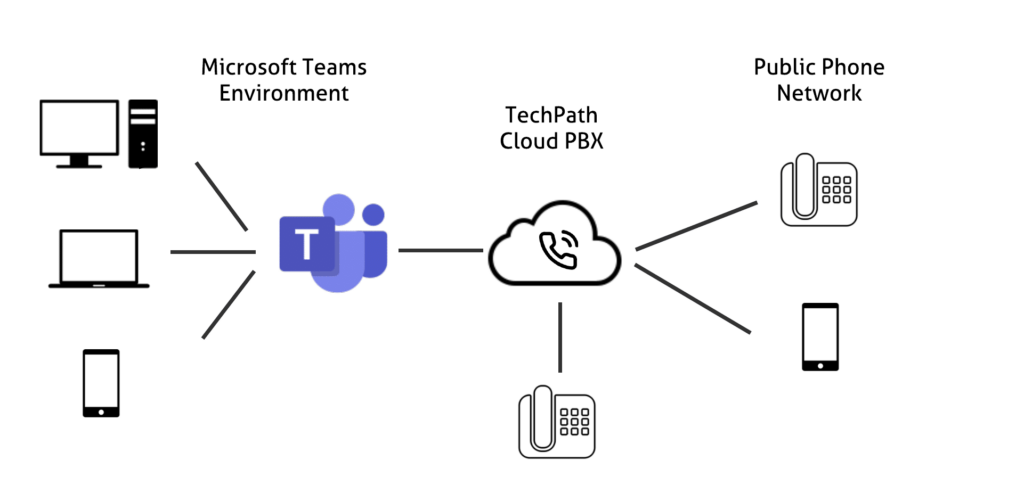
What is Microsoft Teams Direct Routing?
Microsoft Teams Direct Routing is a technical solution that allows organisations to leverage their existing SIP trunks and PBX with Microsoft Teams
In essence, Microsoft Teams Direct Routing integrates external phone calls into the Microsoft Teams ecosystem, allowing for unified communication and collaboration, while maintaining the technical aspects of call routing and ensuring secure and compliant data transmission. This technical integration offers organisations flexibility, cost savings, scalability, and centralised control over their communication infrastructure.
I have created a GitHub page which hosts the files, scripts and other items that I have used, check them out here: https://github.com/ljgoe/MS-Teams-Direct-Routing
Prerequisites for creating a resource mailbox:
- Office 365 tennant with administration rights
- Microsoft licensing (one of the following)
- E5 (includes Teams Phone System)
- E1 & E3 + Microsoft Teams Phone Standard
- Microsoft Business Basic + Microsoft Teams Phone Standard
- Microsoft Business Standard + Microsoft Teams Phone Standard
- Microsoft Business Premium + Microsoft Teams Phone Standard
- Ability to run PowerShell x64 as an administrator on your computer
- PowerShell script from my GitHub page https://github.com/ljgoe/
Installation Steps:
1. Download the PowerShell script from my GitHub page TeamsDirectRoutingScript.ps1
The Script will do the following:
- Connect to O365 tenant
- Set Office 365 Teams Calling Policy Configuration
- Set PSTN Usage
- Create Teams Direct Routing PSTN Gateways - This is the Cisco CUBE Gateway being added to MS Teams
- Set the Dial Plans for each State in Australia
a. Normalization rules for Queensland, Australia, 07 area code
b. Normalization rules for NSW and ACT region, Australia, 02 area code
c. Normalization rules for WA, SA & NT region, Australia, 08 area code
d. Normalization rules for Victoria and Tasmania region, Australia, 03 area code - Teams Direct Routing PSTN Voice Components
- Create PSTN Usages
- Create PSTN Routes
- Create PSTN Policies
- Normalise phone numbers dialled.
- Assign, configure, and list number manipulation rules on SBCs
- PSTN Policies
- Apply polices to a test user
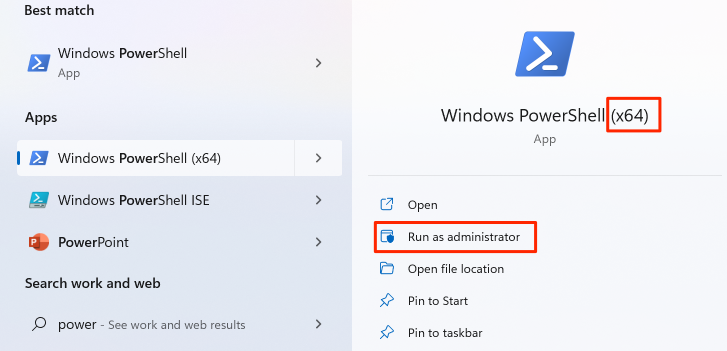
2. Run PowerShell x64 as an administrator, if you don't choose PowerShell (x64) you will see an error like this when running the commands
3. Install these optional modules if you have never connected to Office 365 / MS Online / Exchange Online
# Skip publisher check
[Net.ServicePointManager]::SecurityProtocol = [Net.SecurityProtocolType]::Tls12bInstall-Module PowerShellGet -RequiredVersion 2.2.4 -SkipPublisherCheck
# Install Nuget
Install-PackageProvider -Name nuget -MinimumVersion 2.8.5.201 -force
# Install PnP.PowerShell with version 1.12.0
Install-Module -Name "PnP.PowerShell" -RequiredVersion 1.12.0 -Force -AllowClobber
# Module to connect to Azure AD / Azure Resource Manager
Install-Module -Name AzureAD
Install-Module -Name Az -MinimumVersion 3.0.0 -AllowClobber -Scope AllUsers
# Other modules
Set-ExecutionPolicy RemoteSigned
Install-Module PowershellGet -Force
Update-Module PowershellGet
Install-Module -Name MSOnline –Force
import-Module MSOnline
Install-Module -Name ExchangeOnlineManagement
Import-Module ExchangeOnlineManagement
install-module AzureADPreview
4. Connect to O365 and Exchange Online with your Tenant Admin Account
$UserCredential = Get-Credential
connect-MicrosoftTeams -Credential $UserCredential -ShowProgress $true
5. Run each line of the script and confirm the commands have been successful before moving to the next lines of code
# Run Each set of commands don't run the whole script at once as it will not work.
# Yes there are other scripts you can run or download to do this automatically but using this script is good to confirm each line is running and working
# Replace your phone numbers and extensions in this script in Normalisation rules and PSTN Routes
# replace your SBC hostname
# START #
# Connect to MS teams
$UserCredential = Get-Credential
connect-MicrosoftTeams -Credential $UserCredential -ShowProgress $true
# Office 365 Teams Calling Policy Configuration
Set-CsTeamsCallingPolicy -Identity Global -AllowCallGroups  $true
Set-CsTeamsCallingPolicy -Identity Global -AllowPrivateCalling $true
# Set-CsOnlinePstnUsage
Set-CsOnlinePstnUsage -Identity Global -Usage @{Add = "All" }
#Add Online PSTN Gateway
# Create Teams Direct Routing PSTN Gateways - This is the SIP Gateway being added to MS Teams"
New-CsOnlinePSTNGateway -FQDN 'cube1.lab.getsecured.com.au' `
    -SIPSignalingPort 5061 `
    -ForwardPAI $False `
    -ForwardCallHistory $true `
    -Enabled $True `
    -MediaRelayRoutingLocationOverride AU `
    -MaxConcurrentSessions 24
# Verify the SBC has been created
Get-CsOnlinePSTNGateway -Identity cube1.lab.getsecured.com.au
# Dial Plans - Teams Direct Routing
# Queensland
# Normalization rules for Queensland, Australia, 07 area code
$DPParent = "AU-Queensland"
New-CsTenantDialPlan $DPParent -Description "Normalization rules for Queensland, Australia, 07 area code"
$NR = @()
$NR += New-CsVoiceNormalizationRule -Name ‘AU-Internal-Calls-1xxx’ -Parent $DPParent -Pattern ‘^(1\d{3})$’ -Translation ‘+61712345$1’ -IsInternalExtension $true -InMemory -Description "Translate 1xxx to 61712345xxx"
$NR += New-CsVoiceNormalizationRule -Name ‘AU-Internal-Calls-44xx’ -Parent $DPParent -Pattern ‘^(44\d{2})$’ -Translation ‘+6121231$1’ -IsInternalExtension $true -InMemory -Description "Translate 44xx to 612123144xx"
$NR += New-CsVoiceNormalizationRule -Name "AU-Emergency" -Parent $DPParent -Pattern '^(000|911|999|112)